Step 1. Confirm the Need for Amendment
An amendment to Section 1 may be appropriate when the original information entered by the employee was incorrect or incomplete. This could be due to a typo (such as reversing the first and last name fields) or missing information (such as an employee who did not have an SSN at the time).
Section 1 should not be amended in the case of a legal name change as a result of marriage, divorce, etc. For such changes, see the Name Change job aid.
Only the employee may complete or amend Section 1.
Step 2. Search for the Employee
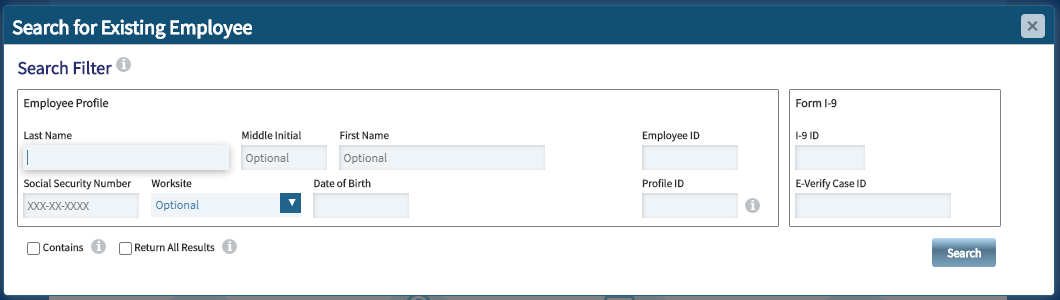
The most reliable practice is to search using the UIN in the Employee ID field. If no record is found, you may also try to find the employee using their First and Last Name.
Be aware that certain records may match in name, but can be entirely different employees. If the search returns an existing record, open the employee profile by clicking on the result, then clicking View Selected Profile (see below). Confirm the details of the record, including date of birth, to determine if the record matches.
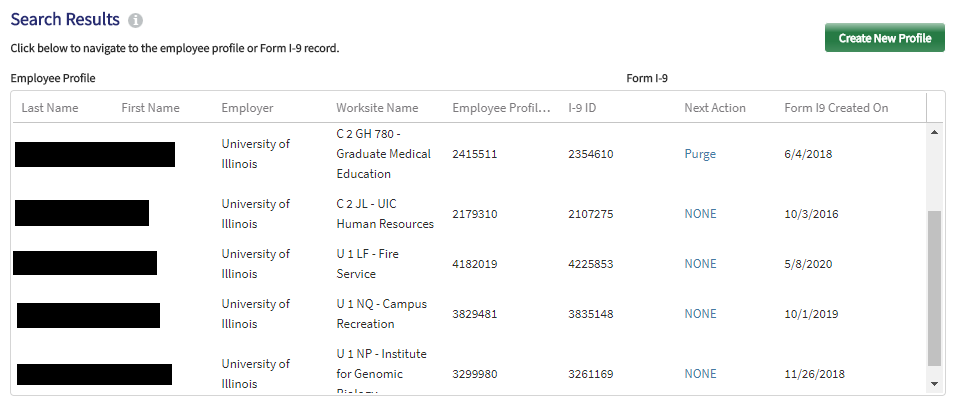
If you do not find an employee profile, or if the record does not have an active I-9, their I-9 may have been completed prior to Tracker being implemented. If you need an employee to remotely update Section 1 who does not have an I-9 in Tracker, contact your central HR office for assistance with creating a Historical I-9.
Step 3. Request Amendment
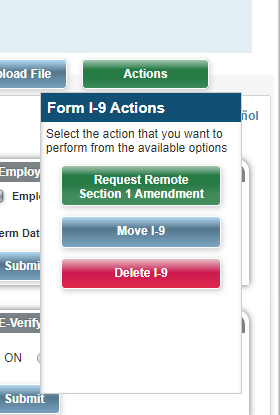
Once you find the completed form in Tracker, go to the I-9 Summary tab. Select the green Actions button, then select Request Remote Section 1 Amendment.
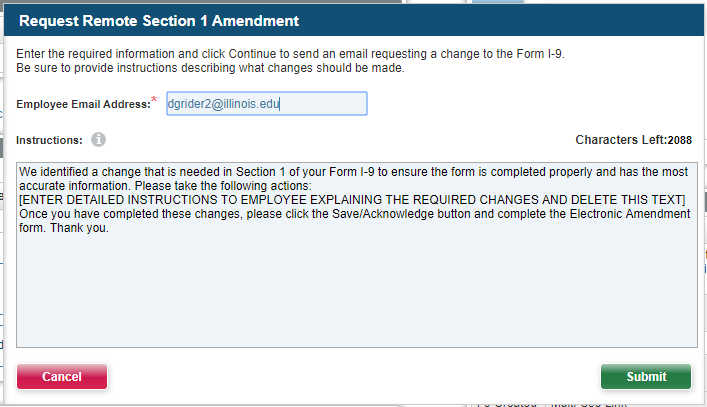
A new window will appear in your browser. In the Employee Email Address field, use the employee's best known email address. It does not need to match what the employee provided in Section 1. In the Instructions box, replace the ENTER DETAILED INSTRUCTIONS... line with specific directions on what they should update. Select Submit when done to send the email to the employee.
Step 4. Employee Amends Section 1
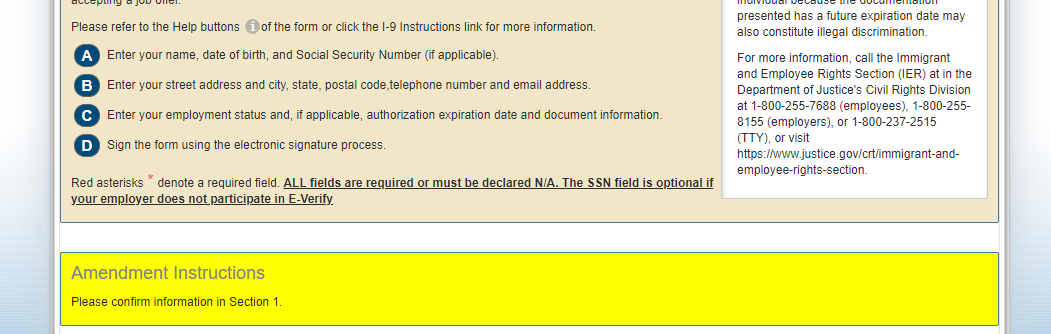
The email that the employee receives will include a link to Tracker, which will work for three days. The employee will be presented with Section 1, plus a yellow box containing instructions. After making an update, the employee may need to click in a blank space on the page to force the Save/Validate option to appear.
When the employee makes changes, the status on the I-9 Summary page will update, but you will not receive an email notification. Follow up directly with the employee if needed.