Step 1. Search for the Employee
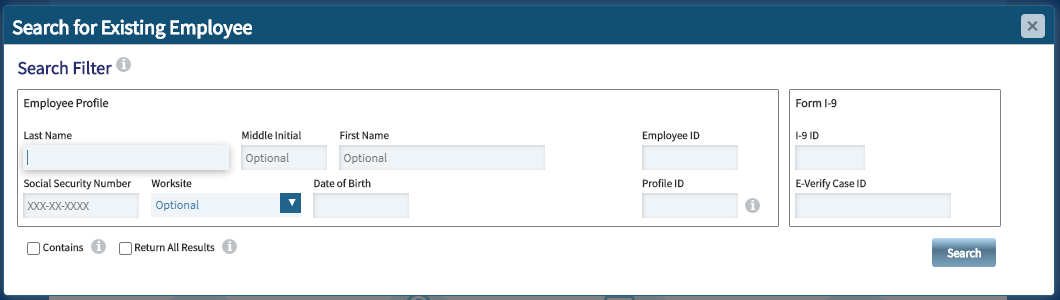
The most reliable practice is to search using the UIN in the Employee ID field. If no record is found, you may also try to find the employee using their First and Last Name.
Be aware that certain records may match in name, but can be entirely different employees. If the search returns an existing record, open the employee profile by clicking on the result, then clicking View Selected Profile (see below). Confirm the details of the record, including date of birth, to determine if the record matches.
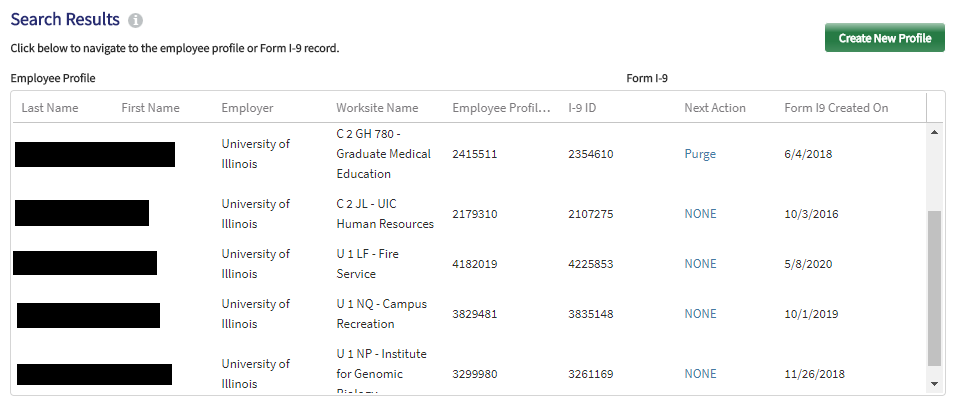
If you do not find an employee profile, or if the record does not have an active I-9, their I-9 may have been completed prior to Tracker being implemented. If you need to complete a name change for an employee who does not have an I-9 in Tracker, contact your central HR office for assistance with creating a Historical I-9.
Step 2. Create a Section 3 Name Change
Once you find the completed form in Tracker, click the Section 3 tab. You will see the list of available Section 3 options.
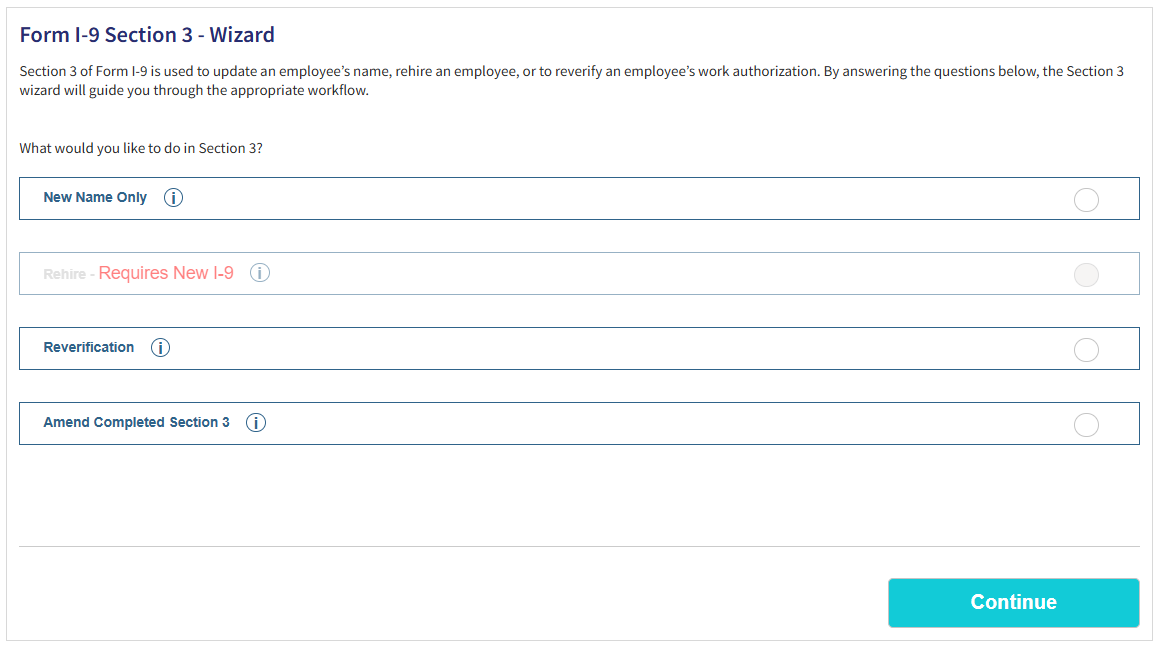
Select the New Name Only option and click Continue.
Select Changes and Enter Information
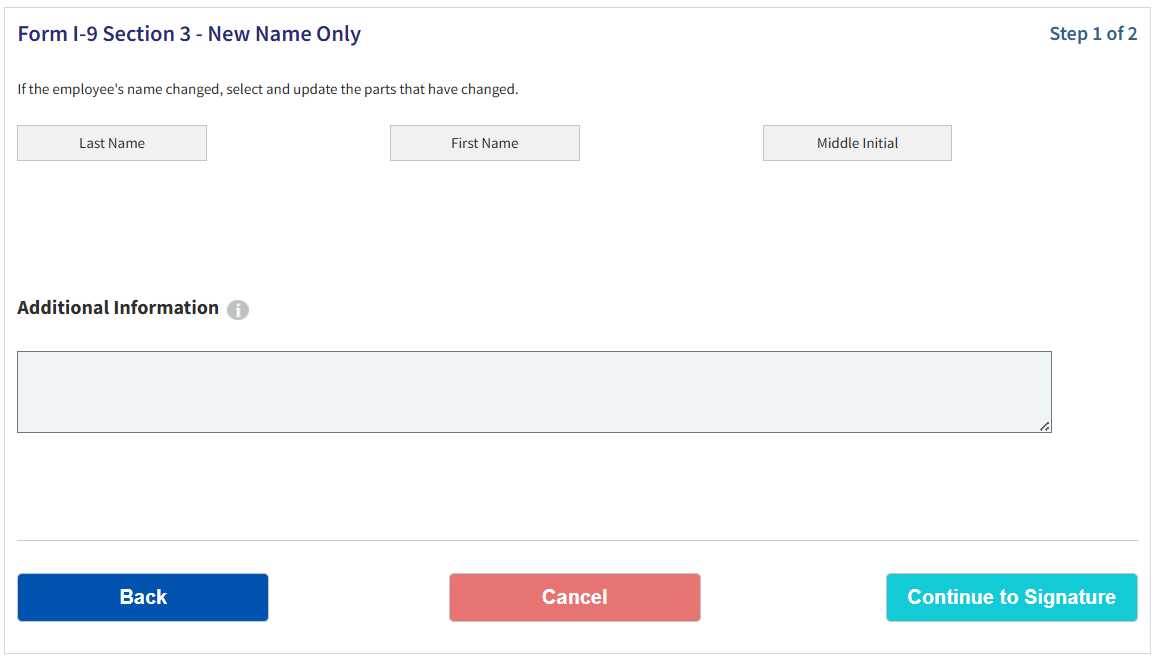
Select each part of the employee's name that has changed. Under the part of the name you select, enter the updated name (first, middle, or last). You are not required to record document information for a name change.
Click Continue to Signature.
Validate & Sign
Once complete, you must electronically sign Section 3:
- Your first name, last name, and title will pre-populate. Confirm the information is correct.
- Check the “I Agree” box to affirm that you have reviewed and verified, to the best of your knowledge, the information entered in Section 3.
- Click “Sign Form I-9 Electronically” to sign and complete Section 3.
If there are any mistakes found which prevent you from signing Section 3, correct them and try again. If you continue to experience problems, contact your central HR office.
Step 3. Update Employee Profile
After completing Section 3, return to the Employee Profile. Update the First, Middle, and Last Name fields as appropriate. Then, enter any previous last names into the Other Last Names Used field.

Click Save to save the changes to the profile.